Ako preuzimate datoteke sa interneta ili ih dobijate elektronskom poštom i li preuzimate sa drugih potencijalno nebezbednih lokacija, takve datoteke mogu sadržati viruse, crve ili druge vrste malvera koji na kraju mogu zaraziti vaš računar.
Moguće je da primite ispravan mejl od poznatog pošiljaoca, datoteka da bude potpuno ispravna i da vam Excel (ili Word) javi tehničku grešku i “zaglavi” sa radom, a usuštini da bude samo datoteka prepoznata kao “sumljiva”.
Taj problem se rešava isključenjem moda zaštićeni prikaz.
Kako se isključuje mod – Zaštićeni prikaz
Preporučuje se da razgovarate sa administratorom ili licem koje brine o bbezbednosti vašeg računara pre nego što promenite postavke zaštićenog prikaza.
Nije loše da vam on proveri i presnimi tu datoteku umesto vas. Ako imate prava izmene postavki excel-a to možete izvesti kroz tri sledeća koraka:
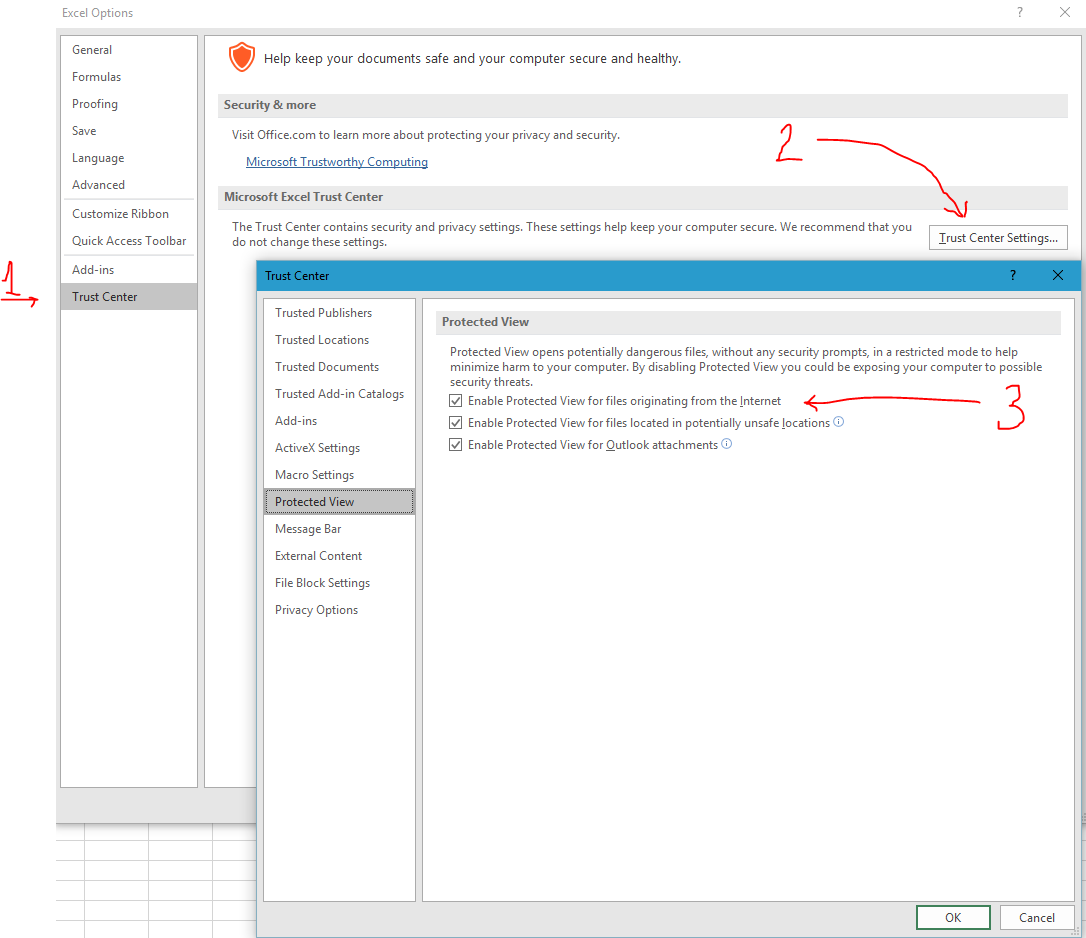
- Izaberite stavke Datoteka>Opcije>Centar za pouzdanost ili File>Option>Trust Center.
- Izaberite stavke Postavke centra za pouzdanost ili Trust Center Settings.
- Izvršite željene izbore ili isključite Omogući zaštićeni prikaz ili Enable Protected View for files.
If you download files from the Internet or receive e-mail and whether you download from other potentially unsafe locations, such files can contain viruses, worms or other types of malware that can eventually infect your computer.
It is possible that you receive the correct e-mail from a known sender, file to be completely correct and that your Excel (or Word) signals the technical error and “stuck” with the work, a usuštini be only files recognized as “suspicious”.
This problem is solved by switching off the protected mode display.
How to disable Protected View
It is recommended that you talk with the administrator or a person who cares about bbezbednosti your computer before you change the setting Protected View.
Not bad to you on check and rewrite the file for you. If you have rights to change the settings excel-and you can perform the following three steps:
- Choose File> Option> Trust Center.
- Select Trust Center Settings.
- Make the desired selections, or turn off Enable Protected View for files.